SUSE Multi-Linux Manager 5.x on Azure (PAYG): Step-by-Step Installation Guide
Welcome back to

SUSE Solutions on Azure: The Technical Series
Bridging the Gap Between Linux Freedom and Azure Scale
Architecting enterprise Linux on Azure requires balancing open-source innovation with rigorous corporate control. This series provides the technical blueprints to help you shift from managing individual distributions to building a unified, secure, and resilient Linux stack at any scale.
While our first installment focused on the BYOS model, this post explores the architectural nuances of the Pay-As-You-Go (PAYG) offering.
Let’s continue with Management – Part 2.
Deploying SUSE Multi-Linux Manager on Azure
Part 1 of this technical series introduced the benefits of SUSE Multi-Linux Manager and detailed the Bring-Your-Own-Subscription (BYOS) deployment. That approach highlighted how to leverage existing investments on Azure for license portability and setup control.
Part 2, shifts the focus from the stability of a licensed model to the details of the Pay-As-You-Go (PAYG) model. Available through the Azure Marketplace,this solution tailors its features for organizations that prioritize consumption-based agility. It offers enhanced flexibility by aligning Linux management costs with native Azure billing.
Part 2: Install SUSE Multi-Linux Manager (SMLM) as a Pay-As-You-Go (PAYG) Setup
There are distinct differences in the PAYG setup, this guide highlights those nuances and provides the architectural background for why they are required. We will walk through the initial steps to install SMLM PAYG in Azure and contrast it with the standard BYOS deployment.
Note: For more in-depth information about SMLM, please refer to the official SUSE Multi-Linux Manager 5.1 Documentation.
The Architect’s Choice: SMLM PAYG vs. BYOS
When deploying SMLM on Azure, the choice between Bring-Your-Own-Subscription (BYOS) and Pay-As-You-Go (PAYG) is a critical architectural decision. Unlike traditional models, the PAYG variant does not require a pre-existing long-term subscription through the SUSE Customer Center (SCC). It is the optimal choice for those seeking automated, consumption-based billing directly through their Azure account.
Benefits of the PAYG Model
- Flexible Scaling: Align management costs directly with your monthly Azure billing.
- Simplified purchasing: Directly via Azure Marketplace
- Subscription Integration: The deployment includes the SMLM Server subscription
- Variable Client Billing: Azure bills Managed Clients monthly based on peak use.
- SLES for SAP Recognition: SMLM recognizes SLES for SAP instances automatically and does not bill for their usage as they include a client subscription.
- MACC Eligibility: Usage counts toward your Microsoft Azure Consumption Commitment (MACC)
- Customer-Managed Control: While deployed as a Managed Application, SUSE utilizes a “Customer Managed” scenario. You retain full control and access while the publisher has no management rights.
- Direct Support: SUSE handles all support for SMLM PAYG. You can open cases via the SCC Cloud Support portal.
Critical Technical Differences
As a technical peer, your “Day 0” planning must consider some architectural constraints:
- VNet Isolation and Managed Resource Groups (MRG): You cannot inject SMLM PAYG into an existing VNet during deployment. The process automatically creates an MRG for the VM, storage, and networking. You must later peer this new VNet with your production networks to manage target node
- Regional Billing Logic: Do not select a generic SMLM offer. You must select the specific listing (EMEA Orders Only or No EMEA Orders) that matches the “sold to” address of your Azure billing account. Always log into the Azure Portal first so the system can correctly identify your billing country.
- Hardened Access by Design: To mitigate brute-force risks, password authentication is strictly forbidden for the initial admin account. SSH keys are mandatory
- No Migration Path: There is no direct migration path from BYOS to PAYG. You must deploy a fresh SMLM PAYG instance and re-onboard your clients.
0. Overview: Deploying SMLM 5.x on Azure (PAYG)
Deploying SUSE Multi-Linux Manager PAYG on Azure involves critical tasks: authenticate to Azure to verify billing country, select the correct regional Marketplace listing (EMEA/Non-EMEA), provision the Managed Application VM with mandatory SSH keys into a new VNet/MRG, create and assign storage disks, and finally execute the containerized installation and initial channel syncing.
1. Laying the Groundwork
Before you touch the Azure Portal, or run CLI for the deployment, ensure your network and security rules are established.
Subscription Essentials
You do not require a prior SUSE subscription for this deployment model.
Network and Security
Network connectivity is the most frequent obstacle during installation. To avoid this, ensure your company firewall or Network Security Group (NSG) is configured to allow the following:
Outbound traffic on Port 443.
Inbound HTTPS traffic to your server’s Fully Qualified Domain Name (FQDN).
(and if you plan to utilize the Azure Cloud Update Infrastructure, access to all Region Servers and the three specific Update Servers for your region – check pint.suse.com for details)
2. Provisioning the Azure Instance
The Architecture of SUSE Multi-Linux Manager Azure PAYG
The SMLM PAYG offering is a Managed Application, not a standard Virtual Machine. This architecture is required to communicate with the Azure Billing API to emit billing meters based on the number of managed systems.
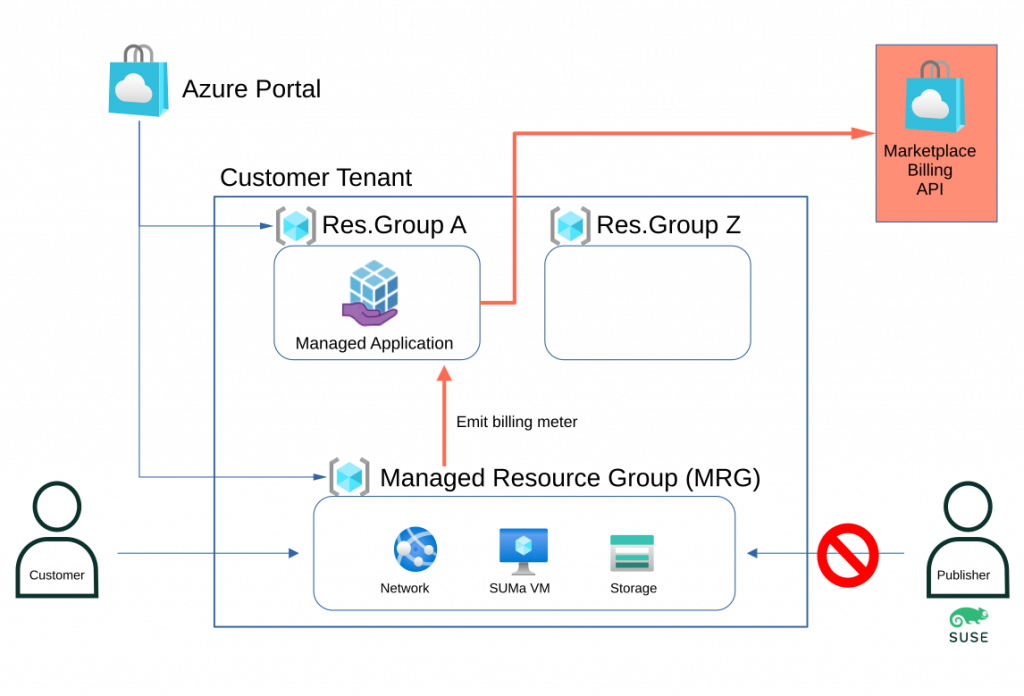
Key components are:
- Application resource group: This resource group ( in the diagram ResGroup A ) holds the managed application instance, which could be translated as the metadata or definition of the offering. It can only contain one resource. You have full access to the resource group and use it to manage the life cycle of the managed application.
- Managed Resource Group (MRG): Holds all required resources, including the VM, storage accounts, and virtual networks.
- Customer Managed Control: Although the publisher (SUSE) develops the application, you retain full access and management control over the solution.
- Billing Transparency: You are billed only for active uptime and the specific count of systems managed and monitored.
Choosing Your Regional Listing
You must select the specific Marketplace listing that matches your Azure account’s “sold to” address to ensure correct transaction processing.
- EMEA Orders Only: For accounts billed within Europe, the Middle East, or Africa.
- No EMEA Orders: For all other global billing regions.
Refer to Microsoft documentation for checking or changing your Azure account profile
Second, verify the list of countries where SUSE offers this option
Note: Always log into the Azure Portal before selecting the offer; do not go directly to the public Marketplace website, as it cannot identify your specific billing account.
You must take two key steps when deploying to ensure correct transaction processing:
- Select the correct Azure Marketplace listing: Your choice must match your Azure account’s “sold to” address:
- EMEA Orders Only: For accounts billed in Europe, the Middle East, or Africa.
- No EMEA Orders: For all other global billing regions.
- Reference: Microsoft documentation for checking or changing your Azure account profile
- Verify SUSE’s country availability for this offering: Check the list of countries where SUSE offers this option.
Important Note: Always ensure you are logged into the Azure Portal before selecting the offer. Do not navigate directly to the public Marketplace website, as it cannot identify your specific billing account details.
Instance Sizing and Storage:
It’s identical to the BYOS requirement, so select an instance type with a minimum of four vCPUs and 32GB of RAM.
Create two additional managed disks:
- Software Channels (>150GB): Hosts software repositories (e.g., lun0).
- Database (~50GB): Stores system metadata for fast query responses (e.g., lun1).
Network Requirements
Because SMLM PAYG is a Managed Application, it must be deployed into a new Virtual Network; it cannot be injected into an existing network during the initial phase.
Network and Security Requirements:
Network connectivity is the most frequent obstacle during installation. To avoid this, ensure your company firewall or Network Security Group (NSG) is configured to allow the following:
- FQDN Resolution: The SMLM server must resolve its Fully Qualified Domain Name (FQDN) correctly to avoid component failure.
- Port Configuration: While many ports exist, you primarily need to secure access to the web interface and management ports.
- Mandatory SSH Keys: To harden the instance against brute-force attacks, password authentication is disabled; SSH keys are required for the administrator account.
- Virtual Network/Subnet: Remember that a Managed Application will be deployed from SUSE to your Azure tenant, so this network is the network in the Managed Resource Group (MRG) and can not be something already used. At a later stage, you need to peer this network to the network with the nodes you want to manage. Alternatively you can create the managed nodes within the MRG network.
For successful operation, the SUSE Multi-Linux Manager server’s Fully Qualified Domain Name (FQDN) must be correctly resolvable. Failure to resolve the FQDN can lead to significant issues across various components.
To guarantee clients can resolve the SUSE Multi-Linux Manager domain name, both the server and all clients must connect to a functional DNS server. Proper reverse lookup configuration is also necessary.
Security Reminder (Recap from Part 1):
When deploying SUSE Multi-Linux Manager in the public cloud, robust security is paramount. It is imperative to limit, filter, monitor, and audit all access to the instance. SUSE strongly cautions against a globally accessible SUSE Multi-Linux Manager instance that lacks adequate perimeter security.
You should really think twice about it, as the SUSE Multi-Linux Manager Server has, later, access all managed nodes. And if someone gets access to SMLM it would mean access to all managed nodes too.
Threat actors actively hunt accessible machines with open management ports ( typical SSH or RDP ) especially at cloud providers.
A Network Security Group (NSG) is created by default if you choose to create a Public IP. It only allows inbound ssh access via port 22, as a minimal protection of the public IP.
You should additionally restrict access to a defined list of networks and let the virtual network that Azure provides drop any requests that originate from other networks.
Furthermore, you also can add Just-in-time access and/or use the Azure Bastion Service and/or Firewall and/or limit address space other methods like VPN, private network to secure this public access.
You can choose to not create a public IP address ( which is more secure ) but you need to use other methods to access the created SUSE Manager VM and its Web UI to perform further configuration. Additionally you need to take care of the DNS and a correct FQDN.
You need to open port 443 (inbound and outbound) to access the web frontend.
Have a look at the documentation for all network requirements: Network Requirements | SUSE Multi-Linux Manager 5.1
The next steps are identical to the BYOS version
3. Preparing the Host OS
The steps in this section mirror those detailed in Part 1. They are included here for thoroughness, ensuring you can follow this guide independently.
Once you have SSH’d into your new machine, the first step is to verify your disks and register the system.
Disk Verification
Check that your additional LUNs are visible and note down the lun numbers:
sudo ls -l /dev/disk/azure/scsi1/*
4. The SMLM 5 Installation
The installation is identical to the one described in part 1. But I will show it here too, so you do not depend on part 1.
Now we get to the heart of the deployment. We need to prepare the storage and then trigger the containerized installation via Podman.
Set up Storage
Use the mgr-storage-server utility to point SMLM to your disks, the usage is like /usr/bin/mgr-storage-server <storage-disk-device> <database-disk-device>
Use the found numbers then in the following cmd
sudo mgr-storage-server /dev/disk/azure/scsi1/lunX /dev/disk/azure/scsi1/lunY
Execute the Install
Trigger the installation by specifying the Podman runtime and your FQDN:
sudo mgradm install podman <fqdn>
5. Syncing Your First Client Channels
Your SMLM 5 instance is essentially an empty library. You need to “stock the shelves” by syncing software channels from the SUSE Customer Center (SCC) or a client PAYG system in Azure.
If you have only PAYG SUSE clients instances, SUSE Multi-Linux Manager can use credentials from a PAYG SLES or SLES for SAP instance to mirror update channels directly from the Public Cloud Update Infrastructure, as described in Part1 or the official documentation. For BYOS and 3rd party Linux instances you need to buy the right number of client subscriptions ( Lifecycle Management – LCM). The steps are exactly the same as within the BYOS scenario, as they are product dependent and not dependent on how you buy the product.
Here, as recap, the steps you had done:
- [ ] Portal Login: Authenticated to the Azure Portal to verify billing country.
- [ ] Listing Selection: Choose correct EMEA/Non-EMEA Marketplace offer.
- [ ] Networks settings verified
- [ ] Additional Disks created and verified.
- [ ] Storage assigned via mgr-storage-server.
- [ ] Podman installation completed via mgradm.
- [ ] Initial admin user created in the Web UI and channels syncing.
What’s Next?
In Part 3 we will look into Compliance at Scale: Automating security audits across the estate with SMLM and OpenSCAP.
Since many of you utilize Command Line Interface (CLI) tools or ARM templates for scaling deployments, below is an example bash script, utilizing az commands, to spin up PAYG installation of the Multi-Linux Manager in an EMEA region. The BYOS version is a straightforward, image-based deployment, so a detailed example is maybe overhead here.
!/usr/bin/bash
# Stop on error, stop on unset variables, and stop on pipe failures.
set -euo pipefail
# Uncomment the next line for verbose debugging
# set -x

############################
#### Configuration

# User and Authentication
ADMIN_USER="azureuser"                      # PLEASE CHANGE TO YOUR NEEDS
SSH_KEY_PATH="$HOME/.ssh/azure.id_rsa.pub"  # PLEASE CHANGE TO YOUR NEEDS

# Check if SSH key exists before proceeding
if [ -f "$SSH_KEY_PATH" ]; then
    PUB_SSH_KEY=$(cat "$SSH_KEY_PATH")
else
    echo "Error: SSH key not found at $SSH_KEY_PATH"
    exit 1
fi

# Alternative: Retrieve key from Azure Key Vault
# PUB_SSH_KEY=$(az keyvault secret show \
#    --name "MySSHKey" \
#    --vault-name "MyVault" --query value -o tsv)

# Azure Configuration
LOCATION="westeurope"                        # PLEASE CHANGE TO YOUR NEEDS

# Hardware 4 vCPUs, 16GB RA
VM_SIZE="Standard_B4as_v2"                   # PLEASE CHANGE TO YOUR NEEDS

# Storage
DB_DISK_SIZE=80                              # PLEASE CHANGE TO YOUR NEEDS
SW_DISK_SIZE=500                             # PLEASE CHANGE TO YOUR NEEDS

OS_DISK_SIZE=100

# Names (which could be changed to your needs)
APP_NAME="SUSEManager51-EMEA"
MANAGED_APP_RG="MultiLinuxManager_App_RG" # RG for the App definition
VM_RG="Manager_VM_RG"                     # RG for the backing infrastructure

# #######
# Do ONLY change if you do know what you do
# Product Details (SUSE Manager 5.1)
PUBLISHER="suse-ltd"			# PLEASE CHANGE if you use Non-EMEA
OFFER="manager-server-5-1-ltd"	# PLEASE CHANGE if you use Non-EMEA
PLAN="payg"
PLAN_VERSION="1.4.4"

############################
#### Execution

echo "--- Starting Deployment ---"

# Dynamically retrieve Subscription ID
echo "Retrieving current Subscription ID..."
SUB_ID=$(az account show --query id -o tsv)

# Construct the Managed Resource Group ID
# Must be a full path and must NOT exist yet
MANAGED_RG_ID="/subscriptions/$SUB_ID/resourceGroups/${VM_RG}"

echo "Accepting Marketplace Terms for ${PUBLISHER}:${OFFER}:${PLAN}..."
az vm image terms accept \
    --publisher "$PUBLISHER" \
    --offer "$OFFER" \
    --plan "$PLAN" \
    --output table

echo "Creating Resource Group: $MANAGED_APP_RG..."
az group create --name "$MANAGED_APP_RG" --location "$LOCATION" --output none

echo "Deploying Managed Application: $APP_NAME..."
# Note: Managed Apps require parameters in a specific JSON structure: { "key": { "value": "actual_value" } }
az managedapp create \
  --kind "Marketplace" \
  --name "$APP_NAME" \
  --resource-group "$MANAGED_APP_RG" \
  --managed-rg-id "$MANAGED_RG_ID" \
  --location "$LOCATION" \
  --plan-name "$PLAN" \
  --plan-product "$OFFER" \
  --plan-publisher "$PUBLISHER" \
  --plan-version "$PLAN_VERSION" \
  --parameters "{
    \"vmName\": {\"value\": \"suse-mgr-vm\"},
    \"adminUsername\": {\"value\": \"$ADMIN_USER\"},
    \"adminSshKey\": {\"value\": \"$PUB_SSH_KEY\"},
    \"vmSize\": {\"value\": \"$VM_SIZE\"},
    \"osDiskSize\": {\"value\": $OS_DISK_SIZE },
    \"virtualNetworkName\": {\"value\": \"suse-vnet\"},
    \"subnetName\": {\"value\": \"default\"},
    \"databaseDiskSize\": { \"value\": $DB_DISK_SIZE },
    \"spacewalkDiskSize\": { \"value\": $SW_DISK_SIZE },
    \"publicIpAllocate\": {\"value\": \"new\" }
  }"

echo "--- Deployment Complete ---"
echo “ Please ssh into the new instance to continue”
Related Articles
Nov 15th, 2024
How AI Is Transforming Enterprise Business Operations