SUSE Multi-Linux Manager 5.x on Azure (BYOS): Step-by-Step Installation Guide
SUSE Solutions on Azure: The Technical Series
 Bridging the Gap Between Linux Freedom and Azure Scale
Running an enterprise-grade Linux environment on Azure often presents a paradox. You want the flexibility of open source innovation, but you need the rigorous control of a managed corporate infrastructure. As environments grow, managing individual “products” becomes a bottleneck. The goal shifts from simply “running a distro” to architecting a unified Linux solution.
Welcome to SUSE Solutions on Azure: The Technical Series
Whether you are migrating your first workload or managing a global footprint of 10,000+ nodes, this series provides the technical blueprints to help you build a more resilient, secure, and manageable stack on Azure.
Let’s start with the foundation: Management.
Deploying SUSE Multi-Linux Manager on Azure
Managing a diverse Linux estate shouldn’t result in tool sprawl. SUSE Multi-Linux Manager (SMLM) centralizes patch and package management through unified software channels and repositories. Supporting over 12 Linux distributions, SMLM provides the governance needed to maintain a secure, predictable environment—whether you are managing IoT edge devices, Kubernetes clusters, or standard VMs.
When you deploy SUSE Multi-Linux Manager on Azure, you gain a robust orchestration engine that goes beyond simple repository mirroring:
- Automated Compliance: Define configuration states to eliminate manual intervention and configuration drift across your hybrid fleet.
- Vulnerability Orchestration: Audit for CVEs across all supported distributions and push remediations from a single interface to reduce Mean Time to Repair (MTTR).
- Lifecycle Control: Use Content Lifecycle Management (CLM) to stage and promote updates through Dev, Test, and Prod environments, ensuring stability before production deployment.
- Edge & Disconnected Support: Securely manage updates for remote edge locations or isolated “air-gapped” VNets using SMLM Proxies or Disconnected Setup workflows, removing the need for direct internet access for every node.
Part 1: Deploy SUSE Multi-Linux Manager (SMLM) as a Bring-Your-Own-Subscription (BYOS) Setup
For many organizations, the primary challenge of an Azure migration is leveraging existing investments without creating isolated management silos. The Bring Your Own Subscription (BYOS) model for SMLM solves this by giving you full control over your infrastructure and licensing. You maintain your existing procurement workflow while gaining a single control plane for all Linux nodes on Azure, regardless of the vendor.
In this first part of the series, we focus exclusively on the BYOS model, which is ideal for predictable, licensed environments. However, many Azure projects require more fluid, consumption-based scaling.
In Part 2, we will look at how to solve for agility and compliance using the SMLM PAYG (Pay-As-You-Go) variant, allowing you to align your management costs directly with your monthly Azure billing.
Note: For more in-depth information about SMLM, please refer to the official SUSE Multi-Linux Manager 5.1 Documentation.
0. Overview: Deploying SUSE Multi-Linux Manager on Azure (BYOS)
To deploy SUSE Multi-Linux Manager (SMLM) 5.x on Azure using the Bring-Your-Own-Subscription (BYOS) model, you must first verify your SUSE Customer Center (SCC) credentials and ensure outbound network access via Port 443. The deployment process requires provisioning an Azure VM with two dedicated disks—one for software channels and one for the database—followed by registering the immutable SUSE Linux Enterprise (SLE) Micro host OS. Finally, you complete the setup by running the containerized SMLM installation and synchronizing your software channels through the Web UI.
The Modern Foundation: SMLM 5.x Architecture
SMLM 5.x represents a major evolution in Linux management, transitioning to a containerized application model. This new foundation utilizes SUSE Linux Enterprise (SLE) Micro, a transactional system engineered for stability and modern container workloads. As a lightweight, immutable operating system, SLE Micro is perfectly suited for container hosting.
This architectural shift delivers substantial benefits:
- Enhanced Security: The minimal, read-only SLE Micro significantly reduces the host OS attack surface.
- Increased Reliability: Transactional and atomic updates make system maintenance safer and more predictable.
- Simplified Subscriptions: A single SMLM subscription now covers both the SMLM application and the underlying SLE Micro host OS.
Choosing Your Deployment Model:
SUSE offers two primary deployment options for SMLM on Azure:
- Pay-As-You-Go (PAYG): Ideal for users prioritizing flexibility and consumption-based scaling. This model requires no traditional upfront subscription; billing is monthly via Azure based on usage and the quantity of managed systems. Another benefit for the PAYG model is that you are always compliant and it could be used with a Microsoft Azure Consumption Commitment (MACC).
- Bring-Your-Own-Subscription (BYOS): Similar to a private data center deployment, this requires purchasing a subscription directly from SUSE or an authorized distributor. The instance is registered with the SUSE Customer Center (SCC). Note that SMLM is licensed based on managed systems, with a minimum requirement of a one-year subscription for 10 systems.
1. Laying the Groundwork
Before you touch the Azure Portal, or run az cmdline for the deployment, ensure you have your credentials and network rules in order.
Subscription Essentials
To successfully register your BYOS instances, you will need:
- Organization Credentials from the SUSE Customer Center (SCC).
- SMLM Subscription for the number of Managed Clients. This includes the Subscription of SLE Micro as host OS and the SMLM application.
Network and Security
Network connectivity is the most frequent obstacle during installation. To avoid this, ensure your company firewall or Network Security Group (NSG) is configured to allow the following:
- Outbound traffic on Port 443.
- Inbound HTTPS traffic to your server’s Fully Qualified Domain Name (FQDN).
- Access to a SUSE Product Repository
- scc.suse.com if you are registering directly against the SUSE Customer Center (SCC),
- or if you plan to utilize the Azure Cloud Update Infrastructure, access to all Region Servers and the three specific Update Servers for your region (check pint.suse.com for details)
2. Provisioning the Azure Instance
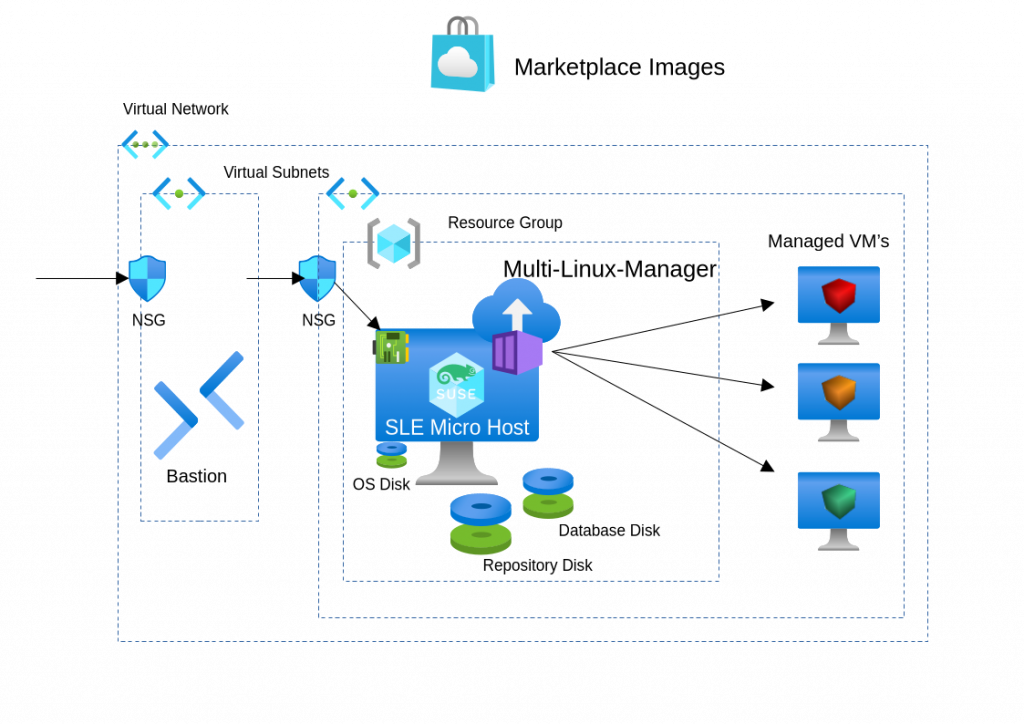
SUSE Multi-Linux Manager on Azure – Conceptual minimal architecture
To ensure optimal performance, your Azure instance must be sized to handle containerized workloads and high-concurrency repository syncing.
Instance Sizing and Storage:
Select an SMLM 5.x BYOS image with a minimum of four vCPUs and 32GB of RAM.
Attach two additional managed disks:
-
Software Channels (>150GB): Hosts software repositories (e.g., lun0).
-
Database (~50GB): Stores system metadata for fast query responses (e.g., lun1).
Network Requirements
For successful operation, the SUSE Multi-Linux Manager server’s Fully Qualified Domain Name (FQDN) must be correctly resolvable. Failure to resolve the FQDN can lead to significant issues across various components.
To guarantee clients can resolve the SUSE Multi-Linux Manager domain name, both the server and all clients must connect to a functional DNS server. Proper reverse lookup configuration is also necessary.
When deploying SUSE Multi-Linux Manager in the public cloud, robust security is paramount. It is crucial to limit, filter, monitor, and audit all access to the instance. SUSE strongly cautions against a globally accessible SUSE Multi-Linux Manager instance that lacks adequate perimeter security.
You need to open port 443 (inbound and outbound) to access the web frontend.
Have a look at the documentation for all network requirements: Network Requirements | SUSE Multi-Linux Manager 5.1
Tip on FQDNs for a demo environment:
Within a demo environment, you might use an Azure default public IP. In the Azure portal, click on your public IP address and assign a DNS name label to create an FQDN like <yourname><unique id>.<vm-location>.cloudapp.azure.com.
You should set your own/company IP within the Inbound port rules of the Network Security Group (NSG) as source IP to protect the access to the instance.
In a production environment, however, you should always aim for a private network architecture without a public IP, leveraging services like Azure Bastion to access the SMLM instance.
If you are starting with Azure, the link below gives a nice intro how a baseline infrastructure could look like: Azure Virtual Machines baseline architecture
3. Preparing the Host OS
Once you have SSH’d into your new machine, the first step is to verify your disks and register the system.
Disk Verification
Check that your additional LUNs are visible:
sudo ls -l /dev/disk/azure/scsi1/*
System Registration
Because SMLM 5 is a BYOS image, you must register it to receive updates. Use the command that matches your infrastructure:
Option A: Using SUSE Customer Center (SCC):
sudo transactional-update register -r <reg_code> -e <your_email>
Option B: Using Azure Cloud Update Infrastructure:
sudo registercloudguest -r <your_reg_code> -e <your-email>
After registering, you should update the OS to get all new patches and bugfixes.
Since this is a transactional system, you must use transactional-update (not zypper), followed by a reboot and re-login.
sudo transactional-update
sudo reboot
4. The SMLM 5 Installation
Now we get to the heart of the deployment. We need to prepare the storage and then trigger the containerized installation via Podman.
Set up Storage
Use the mgr-storage-server utility to point SMLM to your disks, the usage is like /usr/bin/mgr-storage-server <storage-disk-device> <database-disk-device>
sudo mgr-storage-server /dev/disk/azure/scsi1/lun0 /dev/disk/azure/scsi1/lun1
Execute the Install
Trigger the installation by specifying the Podman runtime and your FQDN:
sudo mgradm install podman <fqdn>
Handling Initialization Latency
During the mgradm install process, you may occasionally see a dial tcp …:443: i/o timeout. This is a rare occurrence that typically happens if the installer attempts to verify API connectivity before the containerized services have fully initialized.
The Fix: If the installer exits but the logs indicate the services are pending, simply wait a few moments and run:
sudo mgradm start
This resumes the service management without requiring a full re-installation.
5. Syncing Your First Client Channels
Once the Web UI is live, navigate to your FQDN in a browser and log in with your initial administrator account (admin) and the password you have created during the install.
Your SMLM 5 instance is essentially an empty library; you need to “stock the shelves” by syncing software channels from the SUSE Customer Center (SCC).
Step 1: Add Organization Credentials
Within the left Navigation Area:
Under Admin > Setup Wizard > Organization Credentials, add the “Username/Password” you got from the SUSE Customer Center at My Organization > Users > Organization Credentials
Step 2: Refresh the Product Catalog
Before you can add channels, SMLM needs to know what products are available under your subscription.
- In the Web UI, navigate to Admin > Setup Wizard > Products.
- Wait for the catalog to refresh – it might take several minutes. If you think it takes too long, try reloading the page.
Step 3: Select and Add Products
- Search for the operating systems you intend to manage (e.g., SLES 15 SP5 or SLE Micro 5.5).
- Check the boxes for the specific architectures and products you need.
- Click Add Products. This creates the channel metadata in your local database.
Step 4: Check the Sync
- Click the specific channel you just added.
- If it’s currently syncing, you will see spinning circles in the Channels column.
- If you want to resync a channel, schedule it with the button SCHEDULE RESYNC at the right
Note on Storage: This is where your Channels (>150G) disk comes into play. Initial syncs are large, so monitor your disk usage to ensure you have enough capacity.
With SUSE Multi-Linux Manager now configured, you are ready to onboard and manage your client instances.
For comprehensive instructions on how to configure clients across all supported Linux distributions, please refer to the official documentation section client-config-overview.
Optional: Integrating PAYG Cloud Repositories
Beyond standard SCC synchronization, you can connect an existing SUSE Linux Pay-As-You-Go (PAYG) instance to your BYOS SMLM server. This connection allows the SMLM server to “harvest” authentication metadata directly from the cloud-based instance.
The Purpose: Connecting a PAYG instance enables your SMLM server to access the region local cloud update infrastructure. This is essential if you need to mirror specific cloud-native products or extensions that are not available through your standard SCC organization credentials.
Key Distinction: This process is unique to the BYOS model. While the SMLM PAYG variant includes native access to these cloud repositories by default, a BYOS instance must manually establish this link via the Admin Setup Wizard to bridge the gap between your local subscriptions and the cloud provider’s update servers.
Further Reading: For the exact procedure on extracting these credentials, refer to the Connect PAYG Instance | SUSE Multi-Linux Manager 5.1 Documentation.
6. Summary Checklist
Your SUSE Multi-Linux Manager BYOS instance is now operational. You are ready to onboard and manage your clients.
Here, as recap, the steps you had done:
- [ ] Networks settings verified
- [ ] Additional Disks created and verified.
- [ ] System registered with SUSE via SCC or Cloud Infrastructure.
- [ ] Storage assigned via mgr-storage-server.
- [ ] Podman installation completed via mgradm.
- [ ] Initial admin user created in the Web UI and channels syncing.
What’s Next?
Now that we have established a BYOS (Bring Your Own Subscription) management foundation, you might be wondering about the alternative: speed and consumption-based scaling.
In Part 2, we’ll explore the SMLM PAYG (Pay-As-You-Go) variant. We’ll discuss when it makes sense to choose Azure-native billing over traditional licensing and how to deploy it.
Related Articles
Apr 11th, 2025
Choosing the Right Linux Server OS for Your Enterprise Needs
Apr 03rd, 2025
Understanding Cluster Management For Kubernetes
Apr 25th, 2025
The Total Kubernetes Troubleshooting Guide